A merchant on our support channel recently asked: "How do I block APO, FPO, and DPO addresses?" It's a fair question — the default PO Box blocker in No PO Box doesn't catch military addresses, and most merchants don't realize that until an APO order slips through and gets returned by their carrier.
This guide walks through the exact six-rule configuration that blocks every standard U.S. military and diplomatic address at Shopify checkout — and it takes about five minutes to set up.
Heads up: Blocking APO/FPO/DPO uses our Custom Rules feature, which is included in the Pro plan. If you're on Starter, you'll need to upgrade to access this. New to military addresses? Start with our primer on APO/FPO/DPO first.
Why the Default PO Box Blocker Doesn't Catch Military Addresses
No PO Box's core function looks for variants of "PO Box" inside the address lines — patterns like PO Box 123, P.O.B. 456, or POB 789. That regex is intentionally narrow so it doesn't false-positive ordinary street addresses.
Military addresses follow a completely different format. Here's what a typical APO address looks like:
SGT JANE DOE
PSC 3 BOX 5000
APO AE 09021
Notice what's missing: there's no "PO Box" literal anywhere. The unit line uses PSC (Postal Service Center) or UNIT or a ship designator like USS HAWKINS DDG 96. The "PO" in APO, FPO, and DPO sits on a separate line in the city field, not next to "Box". The default blocker walks right past it.
To catch military addresses, you need to block on the city field (where APO/DPO/FPO actually appears) and the state/province field (where the military region code AA/AE/AP appears). That's what Custom Rules are for.
The Six Rules That Cover Everything
USPS standardizes military addresses into a small set of values. There are exactly three city designators and three "state" codes, so six rules are enough to cover every U.S. military and diplomatic address:
| Field | Blocked value | What it catches |
|---|---|---|
| City | APO |
Army Post Office — Army & Air Force mail |
| City | FPO |
Fleet Post Office — Navy, Marines, Coast Guard, shipboard |
| City | DPO |
Diplomatic Post Office — embassies & consulates |
| State / Province | AA |
Armed Forces Americas (ZIPs in the 340xx range) |
| State / Province | AE |
Armed Forces Europe, Middle East, Africa (ZIPs 090xx–099xx) |
| State / Province | AP |
Armed Forces Pacific (ZIPs 962xx–966xx) |
Why both fields and not just the city? Defense in depth. A checkout that auto-fills the customer's address from a saved profile, or a guest who pastes their address into a single field, can land the designator in the "wrong" slot. Blocking on both fields means the rule fires no matter where APO/DPO/FPO or AA/AE/AP shows up in the address.
The Fastest Way: One-Click Quick-Add
You don't have to build the six rules by hand. On the No PO Box home page, find the Custom Validation Rules card and click Want to block military addresses?
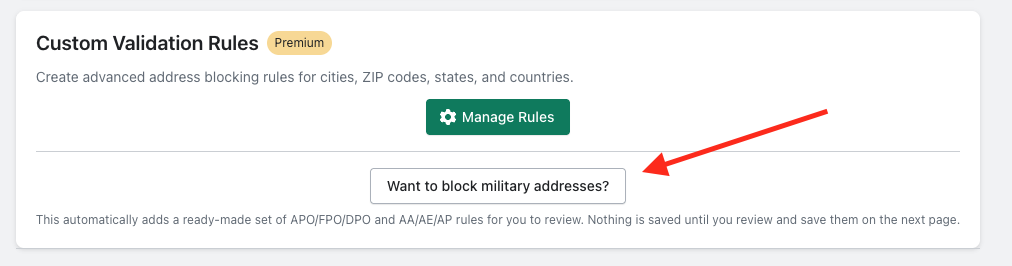
That single click does three things for you:
- Adds all six rules — APO, FPO, and DPO on the City field, plus AA, AE, and AP on the State / Province field — at the top of your list, highlighted in green.
- Turns Validation Status on, so the rules can take effect once you save.
- Leaves everything unsaved so you can review first — nothing is active until you click Save.
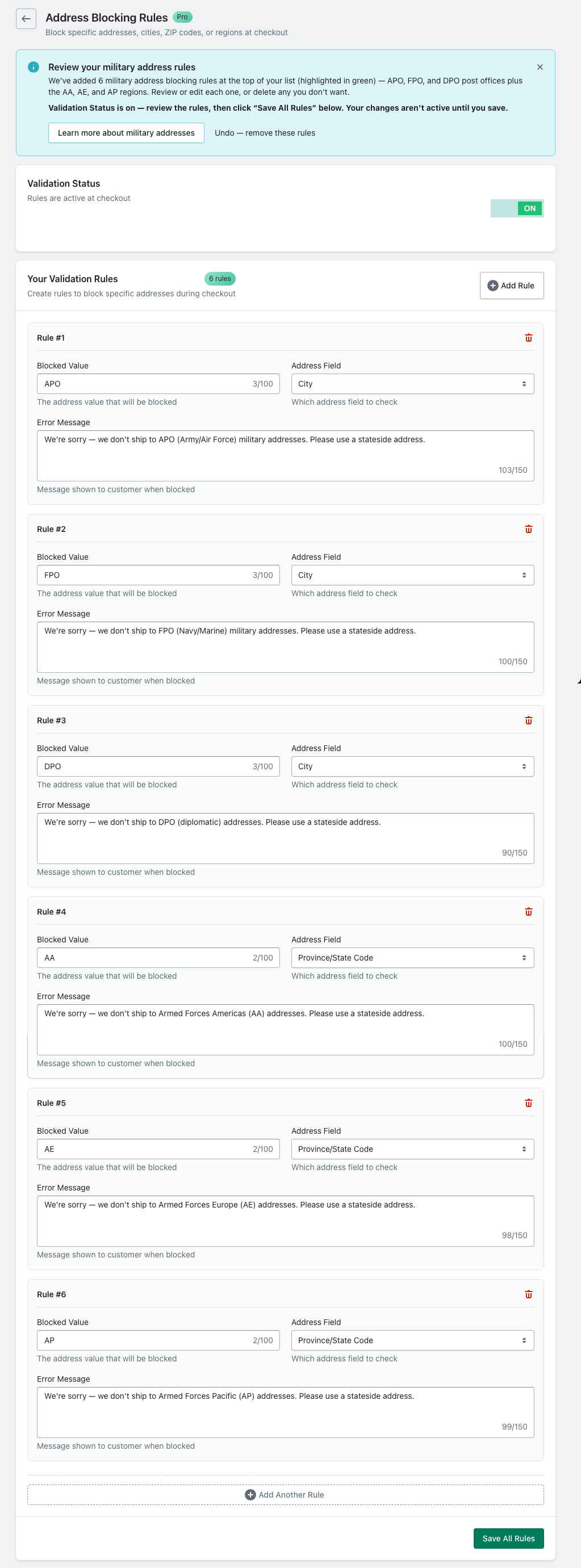
Before you save, review which address types you actually want to block. If you ship to some military regions via USPS, delete any rules you don't need using the trash icon on each rule. When the list looks right, click Save All Rules. Changed your mind entirely? The banner's Undo — remove these rules link clears the whole prefilled set in one click.
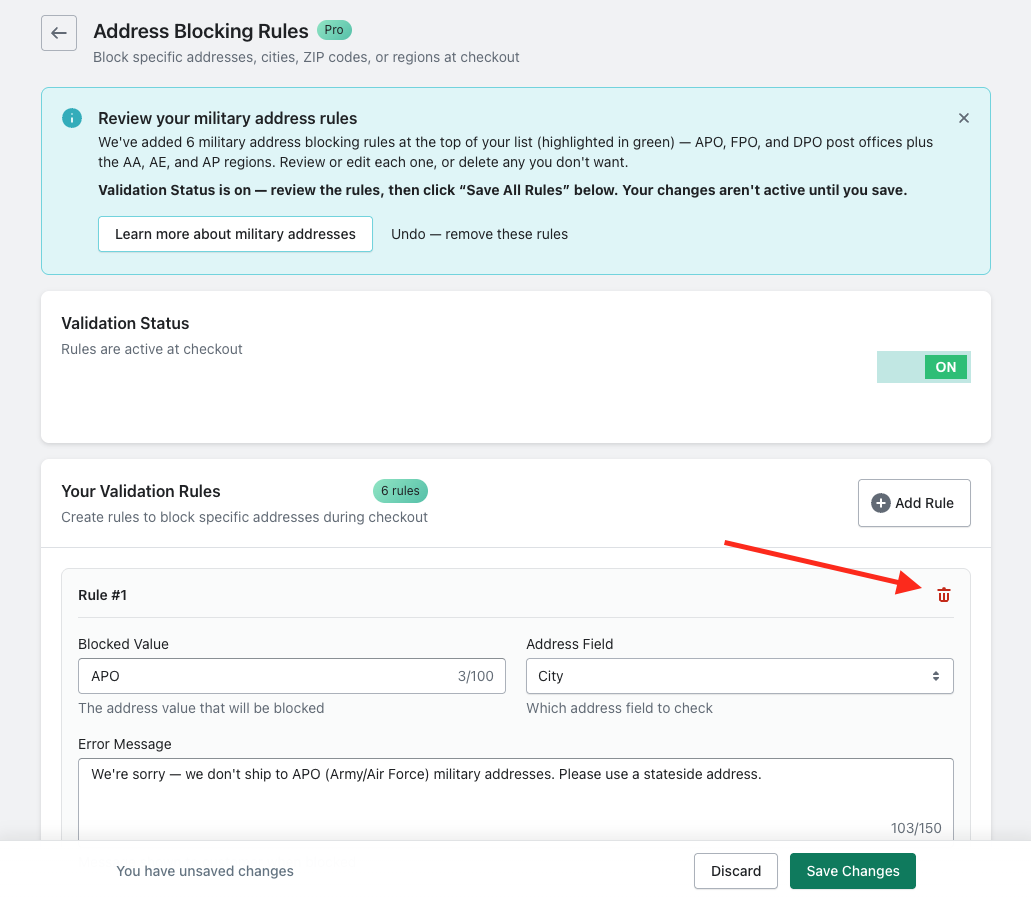
Important: the quick-add prefills the rules but does not save them. Your military address blocking isn't live until you review the list and click Save All Rules.
Prefer to set the rules up yourself, or want to fine-tune each error message as you go? The manual walk-through below builds the same six rules step by step.
Manual Setup, Step by Step
Step 1: Open the Address Blocking Rules page
From your Shopify admin, open the No PO Box app, then click Manage Rules (or navigate directly to Apps → No PO Box → Address Blocking Rules). Make sure the validation toggle is ON — without it, your saved rules sit dormant.
Step 2: Add the first city rule
Click Create your first rule (or Add Rule if you already have rules configured), then fill in:
- Blocked value:
APO - Address field:
City - Custom error message: "We're sorry — we don't ship to APO military addresses. Please use a stateside address." (or whatever wording fits your brand voice)
Case sensitivity: Rule matching is case-sensitive. Shopify normalizes city values to uppercase on the way through checkout, so APO matches the standardized form. If you want to be extra safe, you can add lowercase variants (apo, Apo) too — but in practice, the uppercase rule is enough.
Step 3: Add the remaining five rules
Click Add Rule five more times and configure each one according to the table above:
- City =
FPO - City =
DPO - State / Province =
AA - State / Province =
AE - State / Province =
AP
You can reuse the same error message across all six rules, or tailor each one (some merchants prefer separate messages for diplomatic mail vs. military mail). The customer only ever sees the message for the field that triggered the block.
Step 4: Save and verify
Click Save All Rules. You should see a "Rules saved" toast and the rule counter update to show 6 / 500 rules.
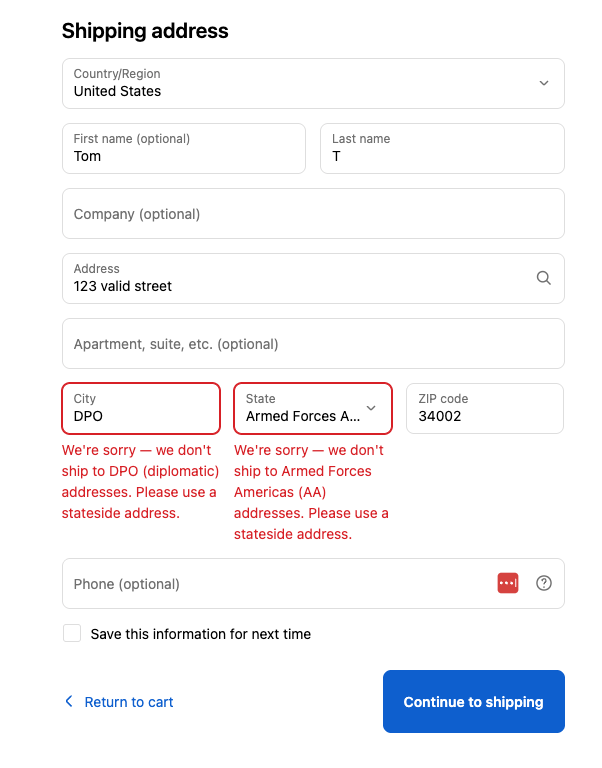
Step 5: Test at checkout with a real military address
Place a test order on your storefront using one of the example addresses below. Each one matches at least one of your new rules (usually two — city plus state):
APO / Armed Forces Europe
Jane Doe
PSC 3 BOX 5000
APO, AE 09021
FPO / Armed Forces Pacific (shipboard)
Alex Johnson
USS Hawkins DDG 96
FPO, AP 96691
DPO / Armed Forces Americas (diplomatic)
Rachel King
Unit 2050 Box 140
DPO, AA 34011
Troubleshooting
"My rule doesn't fire on a lowercase city like apo"
Rule matching is a case-sensitive substring check. Shopify normally uppercases city values during checkout, so this is rarely an issue in practice — but if you have a custom checkout extension that bypasses normalization, add lowercase variants as additional rules.
"A real customer in Naples, FL was blocked"
That shouldn't happen with the six rules above. The AA/AE/AP state codes are unique to military regions — they're not valid 2-letter codes for any U.S. state. If you see false positives, double-check you didn't accidentally add a rule like city = AP (which would substring-match "Naples" or "Annapolis").
"What about ZIP code ranges?"
You can add ZIP rules for additional coverage — military ZIPs fall in 09xxx (AE), 340xx (AA), and 962xx–966xx (AP). We don't recommend it as your primary defense, though, because the matcher is a substring check: a rule like zip = "09" would also match a legitimate 09011 Connecticut ZIP. Stick with the city + province pair unless you know exactly which prefixes you want to block.
"I want to allow APO/FPO but not DPO" (or vice versa)
Just skip whichever city + state pair you want to allow. Common splits:
- USPS shipper, no aerosols/batteries: Block none — military addresses ship fine via USPS at domestic rates.
- UPS/FedEx/DHL only: Block all six — private carriers can't deliver to any military or diplomatic address.
- Selective: Block by region code (AA/AE/AP) rather than designator — e.g., allow APO/FPO but block DPO if your products run afoul of host-country customs.
What This Doesn't Cover
The six-rule setup blocks every standard USPS military address format. A few edge cases sit outside its scope:
- Foreign military addresses from other countries (BFPO for UK forces, CFPO for Canadian forces) — these use entirely different formats and you'd need separate rules.
- State Department pouch addresses sometimes route through a real U.S. city — those are rare and individually addressed.
- Customers who hand-type "Army Post Office" in full in the city field instead of "APO" — uncommon, but if you spot it in your logs you can add additional rules for the spelled-out variants.
Need to Block APO/FPO/DPO at Checkout?
Custom Rules are included in the Pro plan. Start a 7-day free trial and have your military address blocking live in five minutes.
Try No PO Box Pro →Recap
Six rules. Two fields. Done. The default PO Box blocker won't catch military addresses on its own, but adding three city rules (APO, DPO, FPO) and three state rules (AA, AE, AP) covers every standard USPS military and diplomatic address format. If your carriers can't deliver to military bases or your products are restricted from international military shipping lanes, this is the cleanest way to keep those orders out of your fulfillment queue.